
 Español
 Greek
 Nederlands
 Français
 Deutsch
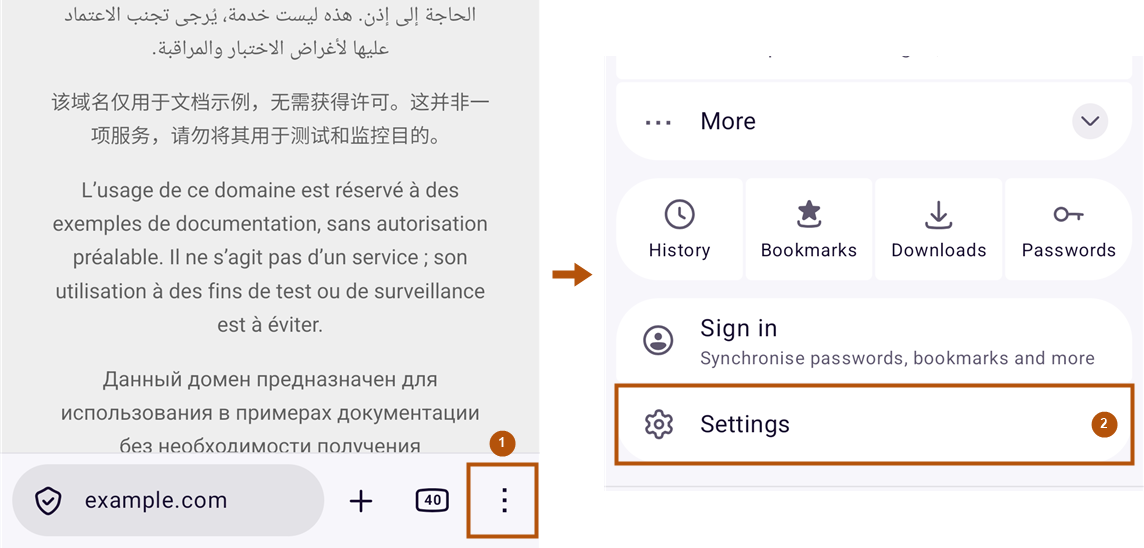
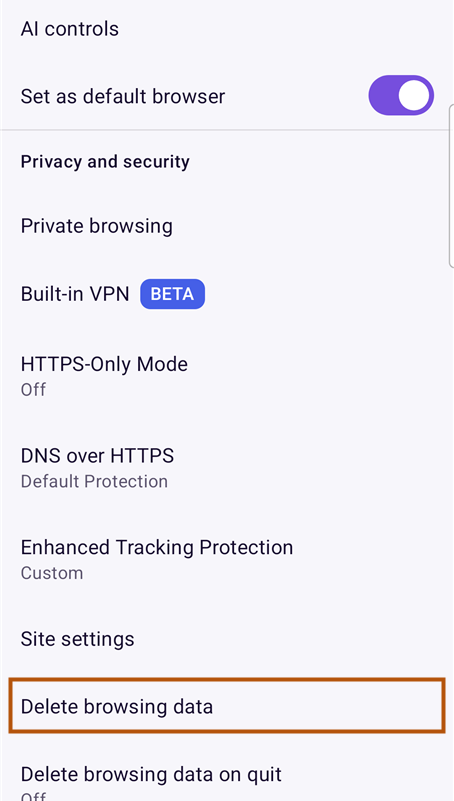
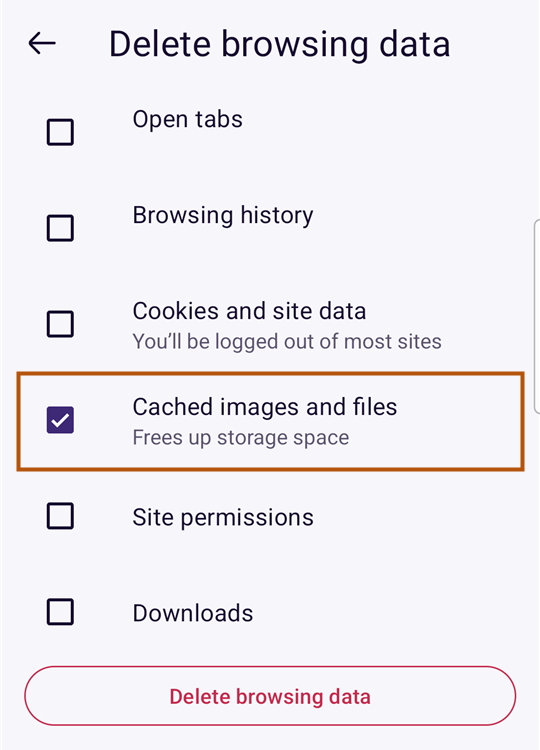
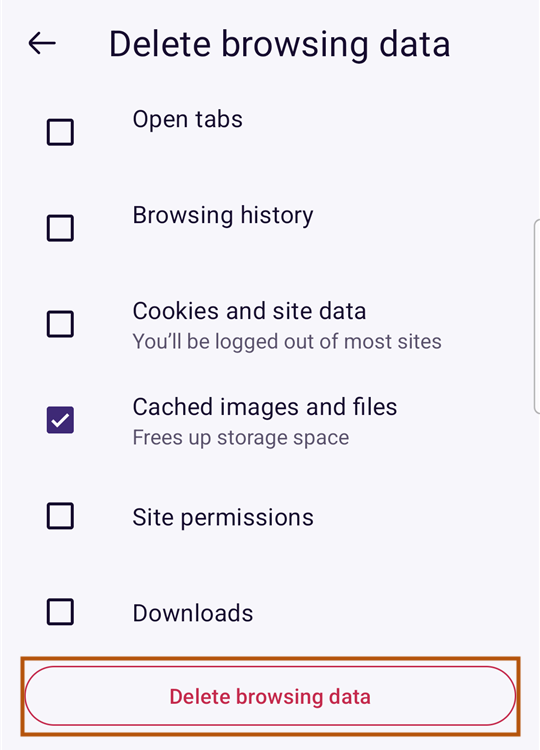
Firefox on your Android phone shows an outdated or broken version of a website? Follow these steps to clear the cache in about one minute.
Step by step
5 steps. Your bookmarks and passwords are kept.

Did it work?
The page still looks old.
Close Firefox completely via the overview of open apps and open it again. If that does not help, Firefox may be outdated – you will find the guide right below.
I use a different browser.
There are separate guides for other browsers on Android phones: Chrome and Samsung Browser.
Clearing the cache did not help?
Then your browser may be outdated. An update fixes many display errors.
For web designers and support teams
You are welcome to link to this guide from your documentation or send it to your customers. Template for your email:
Please clear your browser cache once. You can find a simple guide here: [link to this page]